Lock Screen Camera for iPhone: Take Photos Without Unlocking (Eclipse 1.3)
Press the Camera Control, the Action Button or a Lock Screen control and Eclipse's black screen camera opens on top of the Lock Screen. No Face ID, no Home Screen, no viewfinder. Here is what it does, who it is for, and what it deliberately does not do.
Quick answer: Eclipse 1.3 adds a Lock Screen camera for iPhone. Press the Camera Control, the Action Button or a Lock Screen control and Eclipse’s black screen camera opens on top of the Lock Screen — no Face ID, no passcode, and the phone stays locked. Tap to take a photo, hold to record. It needs iOS 18 or later and Eclipse PRO.
Until now, getting from a phone in your pocket to Eclipse’s black screen took three steps: unlock, find the app or the widget, wait for the camera. Every one of those steps lights up the screen with something that is not a black screen.
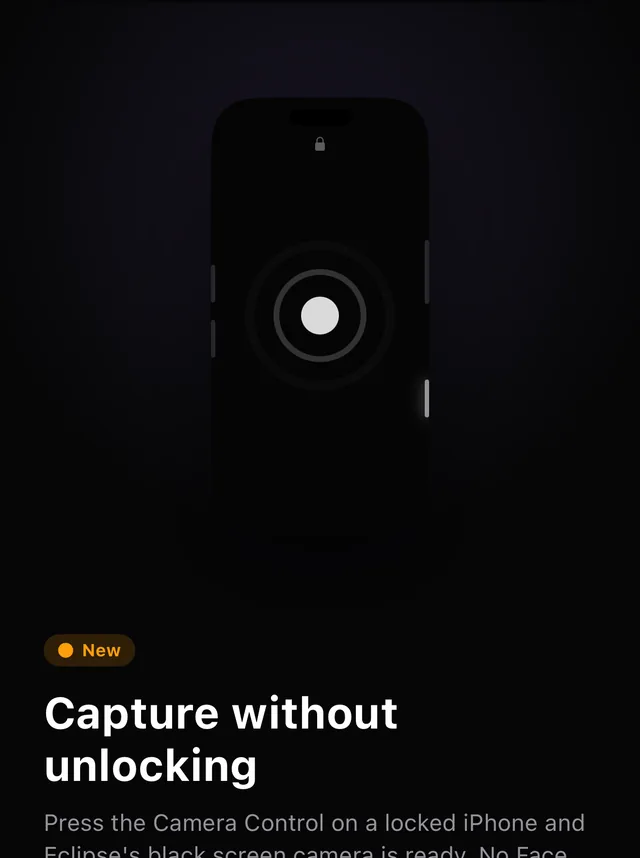
Eclipse 1.3 removes them. On an iPhone running iOS 18 or later, Eclipse can open directly over the Lock Screen, using the same Lock Screen capture mechanism Apple’s own Camera uses when you swipe left on a locked phone. It is the first time a hidden camera app can be one press away on a locked iPhone.
Who it is for
The Lock Screen camera is built for moments when unlocking a bright phone is the problem — too slow, too visible, or both:
- Documenting an incident. A confrontation on the bus, a traffic accident, an aggressive neighbour. Holding up a lit, unlocked phone can escalate a situation; a dark phone in your hand does not.
- Evidence you need in seconds. Damage at a rental-car or apartment handover, a contractor’s work, a parking sign, a receipt. One press, a few taps, and the phone goes back in your pocket — still locked.
- Reporters and field researchers who need to capture something before the moment passes, without a glowing screen announcing it.
- Dark rooms where a bright screen disturbs everyone around you — where recording is allowed in the first place.
- Candid moments with kids or pets, who stop the second they notice a phone pointed at them.
- Gloves, masks, wet hands: Face ID or a passcode is the slow part, and the Lock Screen camera skips it.
Recording other people is regulated differently from place to place. Before you rely on any hidden camera app, read is it legal to record with a hidden camera app?
How it works
You press a button (more on which buttons below), and the screen goes black. That is the camera. There is no viewfinder, no shutter button, no thumbnail of the last shot.
- Tap anywhere to take a photo.
- Touch and hold to start a video; touch and hold again to stop it.
- On iPhones with a Camera Control, pressing it takes a photo.
- Volume down takes a photo; volume up starts or stops a video.
Because there is nothing to look at, every action answers with its own haptic:
| You feel | It means |
|---|---|
| One light tap | A photo was taken |
| A short buzz | Recording started |
| Two quick taps | Recording stopped |
They are the same three cues the main app uses, so the rhythm you learn in one place works in the other — and they differ in rhythm, not just strength, which is what makes them distinguishable through a pocket.
Your iPhone stays locked
This is the part that makes the feature useful and safe at the same time. The camera runs on top of the Lock Screen, not instead of it. No Face ID, no passcode, and nothing else on the phone can be reached from it: not your messages, not Eclipse’s vault, not even the photos you just took.
That last point is a decision, not a gap. A camera that opens without authentication must not become a way into the pictures it has already saved, so the Lock Screen camera shows nothing back at all. If someone picks up your locked phone and presses the Camera Control, they get a black screen — not your gallery.
Where your captures go
The Lock Screen camera hands its photos and videos to Eclipse, and the next time you open the app they are moved into the place your save setting points at: the private, Face ID-locked vault inside Eclipse by default, or the Photos library if that is how you have Eclipse set up.
The camera also follows a few of your existing Camera settings: the front or back camera, high-quality photos, and whether haptics are on. Video includes sound only if you have already given Eclipse microphone access in the app.
Three ways to open it
All three open the same camera. Pick whichever your iPhone has:
- The Camera Control (iPhone 16, iPhone 17, iPhone Air and iPhone 18 Pro models; not the “e” models). Choose Eclipse in Settings › Camera › Camera Control › Launch Camera.
- The Action Button (iPhone 15 Pro and later). Assign Eclipse’s Locked Camera control in Settings › Action Button › Controls.
- The Locked Camera control on the Lock Screen or in Control Center, on any iPhone that runs iOS 18.
Inside Eclipse, Settings › Personalize › Lock Screen Camera lists every step and has a button straight to the right iOS settings page.
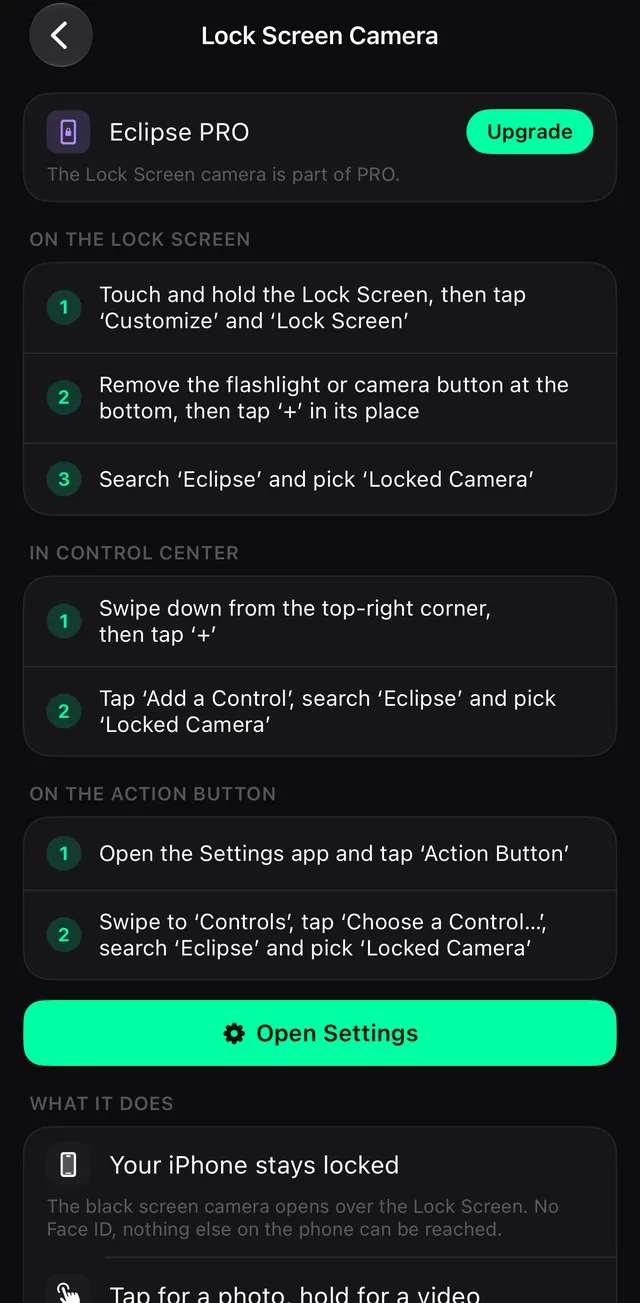
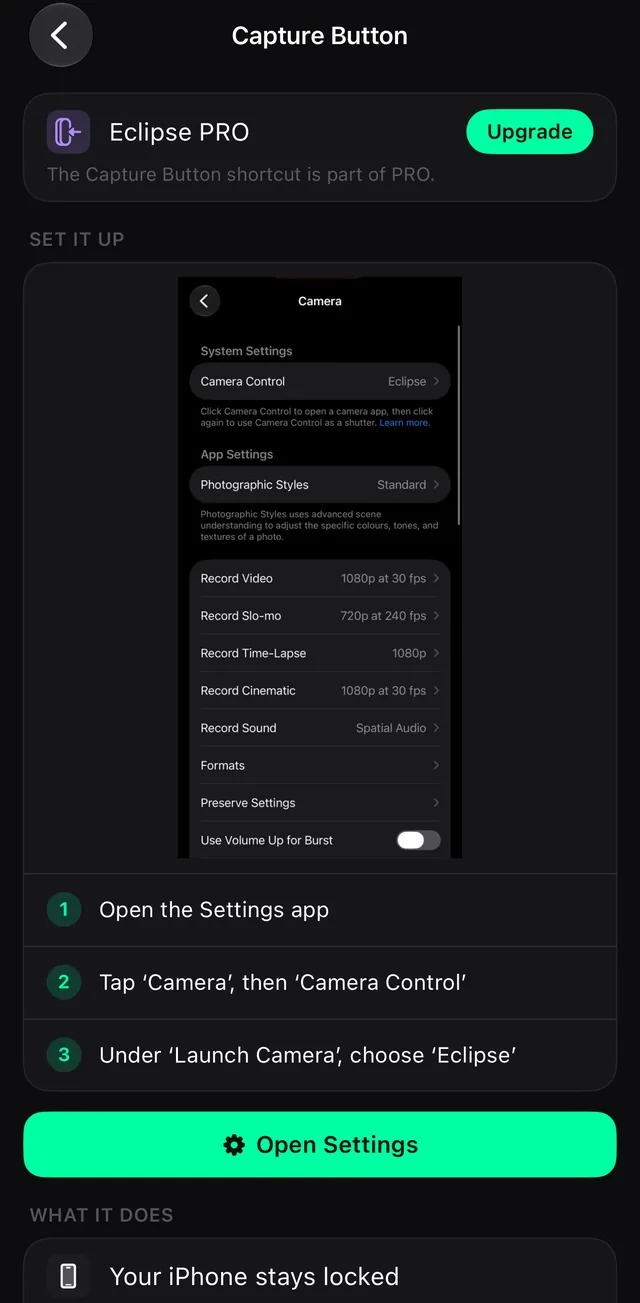
The step-by-step setup guide covers each one with the exact menu names and fixes for the common mistakes.
It is part of Eclipse PRO
The Lock Screen camera is a PRO feature. If you set it up without PRO, the button still works — but instead of the camera you see a short screen explaining the feature, with a button that takes you into Eclipse (after you unlock) to upgrade. Everything else that was free stays free: the black screen mask in the app, the Camera Control as a shutter while Eclipse is open, the Action Button shortcuts, 4K and slow motion.
What it does not do
We would rather list the limits than have you find them later.
- It is not background recording. The Lock Screen camera is a full-screen experience that iOS draws over the Lock Screen. It works while it is on screen; once it is dismissed, capture stops. No third-party app can record with the screen off.
- The green dot still shows. iOS draws the camera indicator above everything, including this.
- Black screen only. The Image, Safari and QR masks, bursts, timed delays, Live Photo, slow motion and audio-only recording stay in the main app. The Lock Screen camera is built for one job: the fastest possible black screen.
- Open Eclipse once after updating. The Lock Screen camera learns your PRO status and settings from the app, and it cannot ask for permissions itself. Open Eclipse at least once after installing 1.3, with camera access allowed.
- Shutter sound rules still apply. In regions where iOS enforces the shutter sound, it enforces it here too.
Requirements, in one place
| Requirement | Detail |
|---|---|
| App version | Eclipse 1.3 or later |
| Device | iPhone with iOS 18 or later (not iPad) |
| Plan | Eclipse PRO |
| Permissions | Camera access; microphone access for sound in videos |
| Buttons | Camera Control, Action Button, or the Lock Screen / Control Center control |
Frequently asked questions
- Can a third-party app open a camera from the iPhone Lock Screen?
- Yes, since iOS 18. Apple lets camera apps add a Lock Screen capture extension, the same mechanism its own Camera uses. Eclipse 1.3 uses it to open a black screen camera while the iPhone stays locked.
- How do I take a photo without unlocking my iPhone using Eclipse?
- Set Eclipse as the Camera Control's camera, or add Eclipse's Locked Camera control to the Action Button, the Lock Screen or Control Center. Press it on a locked iPhone, then tap the black screen, press the Camera Control or press volume down to take a photo.
- Can I record video without unlocking my iPhone?
- Yes, with Eclipse 1.3 PRO. In the Lock Screen camera, touch and hold the screen or press volume up to start recording, and do the same again to stop. A short buzz confirms the start and two quick taps confirm the stop.
- Does the Eclipse Lock Screen camera keep recording after the screen turns off?
- No. It works while it is on screen. When it is dismissed, capture stops. iOS does not let any third-party app record in the background or with the screen off.
- Where do photos taken on the Lock Screen go?
- They are handed to Eclipse and moved, the next time you open the app, to wherever your save setting points: the Face ID-locked vault inside Eclipse by default, or the Photos library.
- Can someone see my photos from the Lock Screen camera?
- No. The Lock Screen camera shows nothing back: no thumbnail, no gallery, no access to the vault. Everything you captured is only visible after unlocking the phone and opening Eclipse.
- Which iPhones support the Eclipse Lock Screen camera?
- Any iPhone that runs iOS 18 or later, through the Locked Camera control on the Lock Screen or in Control Center. iPhone 15 Pro and later can also use the Action Button, and iPhone 16, iPhone 17, iPhone Air and iPhone 18 Pro models can use the Camera Control. It does not run on iPad.
- Is the Lock Screen camera free?
- No, it is part of Eclipse PRO. The black screen camera inside the app, the Camera Control as a shutter while Eclipse is open, and the Quick Photo and Quick Video shortcuts stay free.
Eclipse is free to download
Five screen disguises, 4K capture and a Face ID-locked vault. The black screen mask, the lock and slideshow stay free.
Get it on the App Store