How to Open a Black Screen Camera From the Camera Control, Action Button or Lock Screen
Four places on an iPhone can open Eclipse's black screen camera with one press. This guide gives the exact menu names for each, says which ones keep the phone locked, and covers the setup mistakes that make a button do nothing.
Quick answer: To open Eclipse’s black screen camera with one press, go to Settings › Camera › Camera Control › Launch Camera and choose Eclipse (iPhone 16 and later), or add Eclipse’s Locked Camera control to the Action Button, the Lock Screen or Control Center. Those routes open the camera without unlocking (Eclipse 1.3, PRO, iOS 18). The free Quick Photo and Quick Video controls open the app instead.
There are two kinds of shortcut into Eclipse, and it helps to know which one you are setting up before you start.
| Shortcut | Opens | Phone stays locked? | Tier |
|---|---|---|---|
| Camera Control → Eclipse | Lock Screen camera | Yes | PRO, Eclipse 1.3+ |
| Locked Camera control | Lock Screen camera | Yes | PRO, Eclipse 1.3+ |
| Quick Photo / Quick Video / Quick Audio | The Eclipse app, in that mode | No, asks for Face ID | Free |
Inside Eclipse, all of these have a setup page under Settings › Personalize: Action Button, Capture Button (only on iPhones with a Camera Control) and Lock Screen Camera. Each has an Open Settings button that takes you to the right page of the iOS Settings app. What the Lock Screen camera does and does not do.
Before you start
- Update Eclipse and open it once. The Lock Screen camera learns your PRO status and settings from the app. If you have not opened Eclipse since installing or updating, it shows an upgrade screen even if you have PRO.
- Allow camera access in Eclipse. The Lock Screen camera cannot ask for permissions itself; if access is off, it shows “Camera access is off” with a button to open the app.
- Allow microphone access if you want sound in videos. Without it, Lock Screen videos are silent.
- Set your camera — front or back — in Eclipse’s Camera settings. The Lock Screen camera uses the same one.
Camera Control (iPhone 16, iPhone 17, iPhone Air, iPhone 18 Pro)
This makes the Camera Control open Eclipse instead of Apple’s Camera.
- Open the Settings app.
- Tap Camera, then Camera Control.
- Under Launch Camera, choose Eclipse.
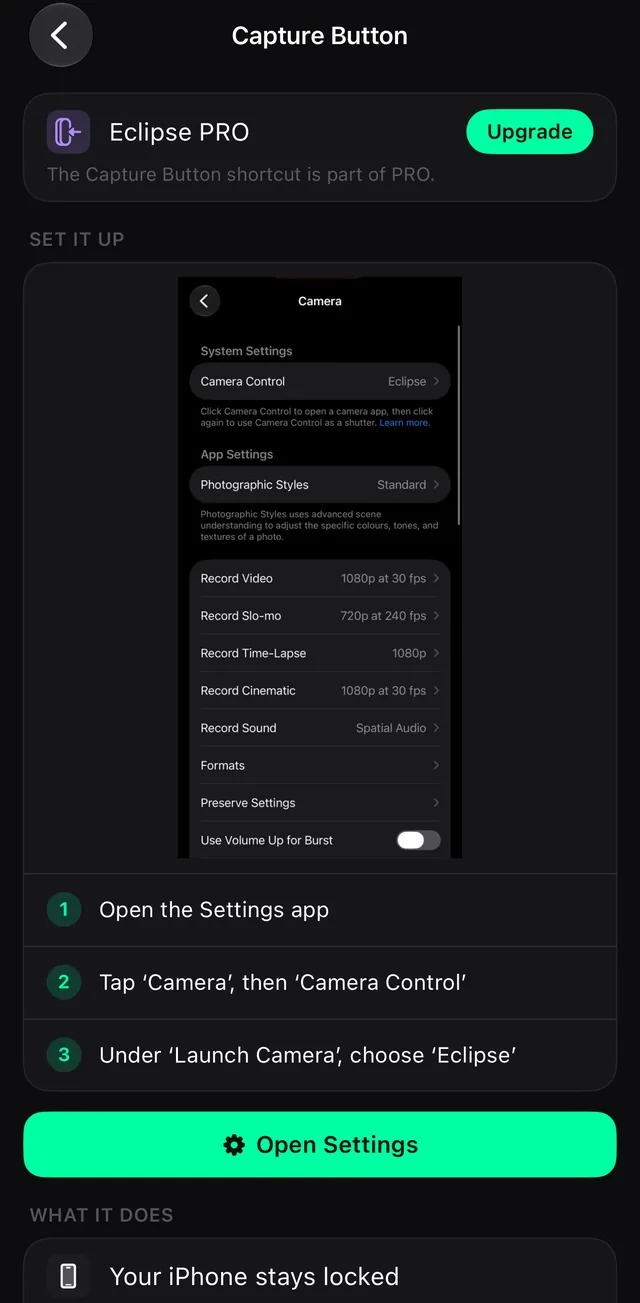
Now press the Camera Control on a locked iPhone: the screen goes black and the camera is running. Press it again — or volume down, or tap the screen — for a photo. Volume up, or touching and holding the screen, starts and stops a video.
You do not need any of this to use the Camera Control inside Eclipse: since 1.2.1, whenever Eclipse’s camera is open, the Camera Control works as its shutter, for free.
Action Button (iPhone 15 Pro and later)
The Action Button can run a control from Eclipse. Which control you choose decides whether the phone stays locked.
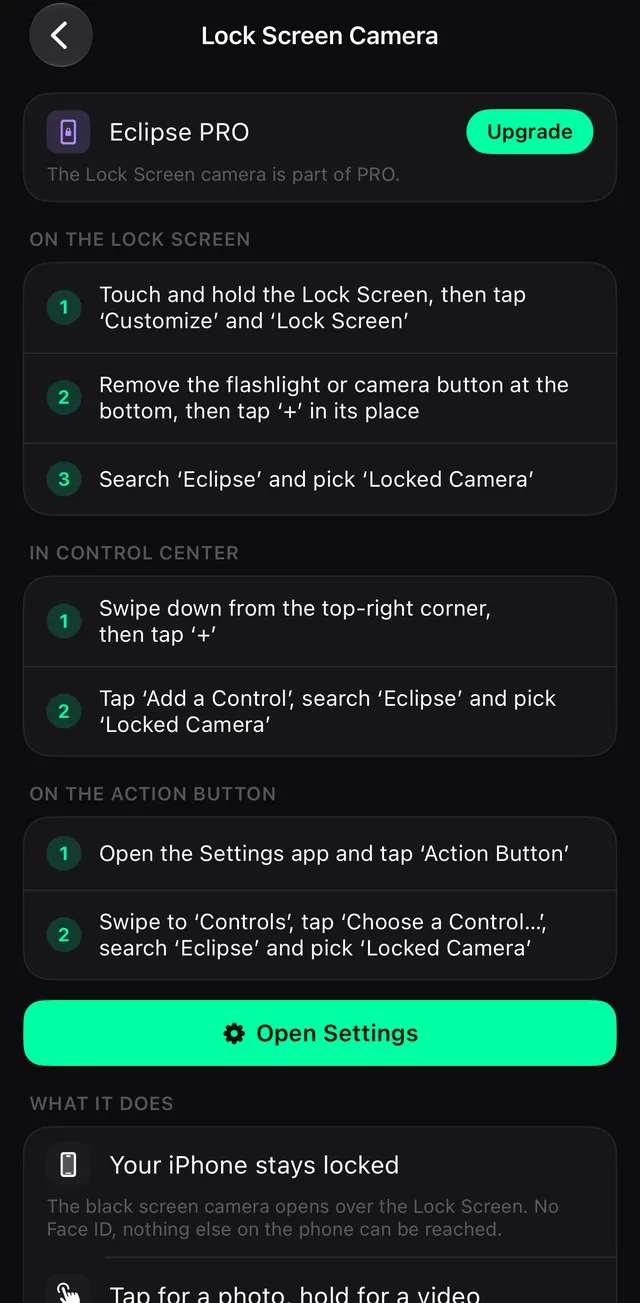
- Open the Settings app and tap Action Button.
- Swipe to Controls and tap Choose a Control…
- Search Eclipse and pick one:
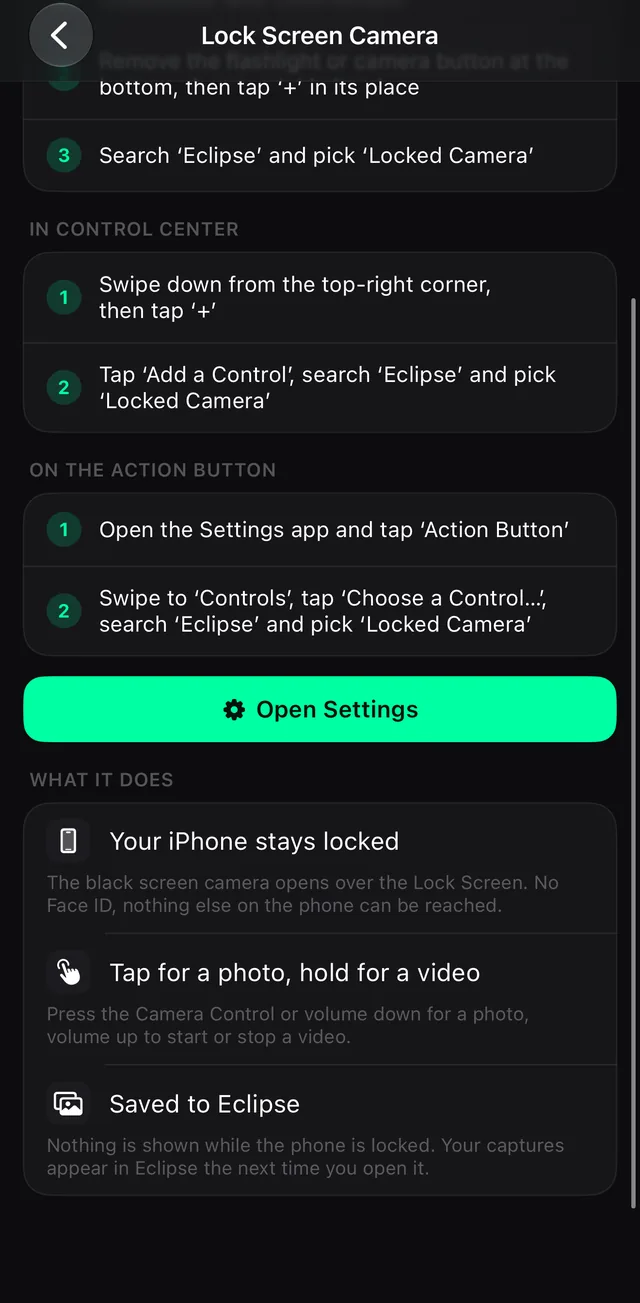
- Locked Camera — the Lock Screen camera (PRO, Eclipse 1.3+). The phone stays locked.
- Quick Photo, Quick Video or Quick Audio — opens the app in that mode (free). A locked phone asks for Face ID first.
If you choose Quick Video, Eclipse’s Action Button page has one extra switch: Start recording right away, which begins recording as soon as the black screen opens. It is the same setting as Auto-start in Camera settings.
Lock Screen (any iPhone on iOS 18)
You can put the Locked Camera control in one of the two bottom corners of the Lock Screen, where the flashlight and camera usually sit. This is the route for iPhones without a Camera Control or Action Button.
- Touch and hold the Lock Screen, then tap Customize and Lock Screen.
- Remove the flashlight or camera button at the bottom, then tap + in its place.
- Search Eclipse and pick Locked Camera.
Control Center (any iPhone on iOS 18)
- Swipe down from the top-right corner, then tap +.
- Tap Add a Control, search Eclipse and pick Locked Camera (or one of the Quick controls, if you want the app instead).
If the button does nothing, or shows the wrong thing
Eclipse is missing from the Camera Control list. It appears only on Eclipse 1.3 or later, on iOS 18. Open Eclipse once after updating. Some people have found that a newly installed camera app does not show up in that list until the iPhone is restarted, and in rare cases until the app is reinstalled.
You see “Capture without unlocking” instead of a black screen. That is the upgrade screen: either you do not have PRO, or Eclipse has not been opened since PRO was activated or the app was updated. Open Eclipse, then try again.
You see “Camera access is off”. Open Eclipse and allow camera access when it asks, or turn it on in Settings › Privacy & Security › Camera.
Nothing appears where your photos should be. The Lock Screen camera never shows captures while the phone is locked. They are moved into Eclipse’s vault (or Photos, depending on your save setting) the next time you open the app.
You hear a shutter sound. In some regions iOS enforces the camera shutter sound at the system level, and no app setting can turn it off. See how silent photos work on iPhone.
Which one should you use?
| Your situation | Best shortcut |
|---|---|
| iPhone 16 or later, with PRO | The Camera Control — easy to find by touch, and it doubles as the shutter |
| iPhone 15 Pro, 16e or 17e, with PRO | Locked Camera on the Action Button |
| Any other iPhone on iOS 18, with PRO | Locked Camera in a Lock Screen corner |
| No PRO | Quick Photo or Quick Video on the Action Button or in Control Center, plus the Camera Control as a shutter once Eclipse is open |
For a model-by-model list, see Eclipse on the newest iPhones. For the settings that matter once the camera is open, see the best iPhone settings for discreet recording.
Frequently asked questions
- How do I change which app the iPhone Camera Control opens?
- Open Settings, tap Camera, then Camera Control, and under Launch Camera choose the app. To open Eclipse's black screen camera, choose Eclipse (version 1.3 or later).
- How do I make the Action Button open a camera app?
- Open Settings › Action Button, swipe to Controls, tap Choose a Control, search for the app and pick one of its controls. For Eclipse, Locked Camera keeps the phone locked and Quick Photo or Quick Video opens the app.
- How do I replace the flashlight on the iPhone Lock Screen with a camera app?
- Touch and hold the Lock Screen, tap Customize and Lock Screen, remove the flashlight or camera button at the bottom, tap + in its place, then search for the app. For Eclipse, pick Locked Camera.
- Why is Eclipse missing from the Camera Control Launch Camera list?
- It appears only with Eclipse 1.3 or later on iOS 18 or later. Open Eclipse once after updating. If it is still missing, restart the iPhone; in rare cases reinstalling the app is needed.
- Why does my button show 'Capture without unlocking' instead of a black screen?
- That is Eclipse's upgrade screen. Either the Lock Screen camera has no PRO subscription to see, or Eclipse has not been opened since PRO was activated or the app was updated. Open Eclipse once, then try again.
- Which shortcut keeps my iPhone locked?
- Only Eclipse's Locked Camera route: the Camera Control set to Eclipse, or the Locked Camera control on the Action Button, Lock Screen or Control Center. Quick Photo, Quick Video and Quick Audio open the app and ask for Face ID on a locked phone.
Eclipse is free to download
Five screen disguises, 4K capture and a Face ID-locked vault. The black screen mask, the lock and slideshow stay free.
Get it on the App Store