Hidden Camera App for iPhone 17, iPhone Air and iPhone 18 Pro: What Eclipse Supports
Recent iPhones added buttons and screens a black screen camera can use. Here is what Eclipse 1.2.1 and 1.3 do with each, model by model: which iPhones get the Camera Control, which get the Action Button, which parts are free and which are PRO.
Quick answer: Eclipse runs on every current iPhone, including iPhone 17, iPhone 17 Pro, iPhone Air, iPhone 18 Pro and iPhone Duo. The Camera Control works as a free shutter inside Eclipse and, with PRO, opens the black screen camera from the Lock Screen. The Action Button can open Eclipse in one press. Any iPhone on iOS 18 can add the Lock Screen camera as a control.
A black screen camera lives or dies by how little you have to touch the screen. Every recent iPhone generation has added a physical way to do something without looking — and each one changes what Eclipse can offer. This is a hardware-by-hardware account of what Eclipse 1.2.1 and 1.3 do on current iPhones, which version added what, and what it costs.
Which iPhone gets what
| iPhone | Camera Control | Action Button | Lock Screen camera (iOS 18+) |
|---|---|---|---|
| iPhone 18 Pro, 18 Pro Max | Yes | Yes | Yes |
| iPhone 17, 17 Pro, 17 Pro Max, iPhone Air | Yes | Yes | Yes |
| iPhone 16, 16 Plus, 16 Pro, 16 Pro Max | Yes | Yes | Yes |
| iPhone 17e, iPhone 16e | No | Yes | Yes, via Action Button or control |
| iPhone 15 Pro, 15 Pro Max | No | Yes | Yes, via Action Button or control |
| Other iPhones on iOS 18 | No | No | Yes, via the Lock Screen or Control Center control |
The Lock Screen camera is Eclipse PRO; the Camera Control as an in-app shutter and the Quick shortcuts are free.
What Eclipse does with each, at a glance
| Hardware | What Eclipse does | Version | Tier |
|---|---|---|---|
| Camera Control | Takes a photo while Eclipse’s camera is open | 1.2.1 | Free |
| Camera Control | Opens Eclipse’s camera over the Lock Screen | 1.3 | PRO |
| Action Button | Opens Eclipse’s camera with one press | 1.2.1 | Free |
| Action Button | Opens the Lock Screen camera, phone stays locked | 1.3 | PRO |
| iPhone Duo cover screen | Home screen, camera controls and intro fit it | 1.2.1 | Free |
| Lock Screen / Control Center control | Opens the Lock Screen camera | 1.3 | PRO |
Camera Control (iPhone 16, iPhone 17, iPhone Air, iPhone 18 Pro)
The Camera Control is the sapphire button low on the right side of the phone. (iPhone 16e and 17e do not have one.) Eclipse uses it in two ways.
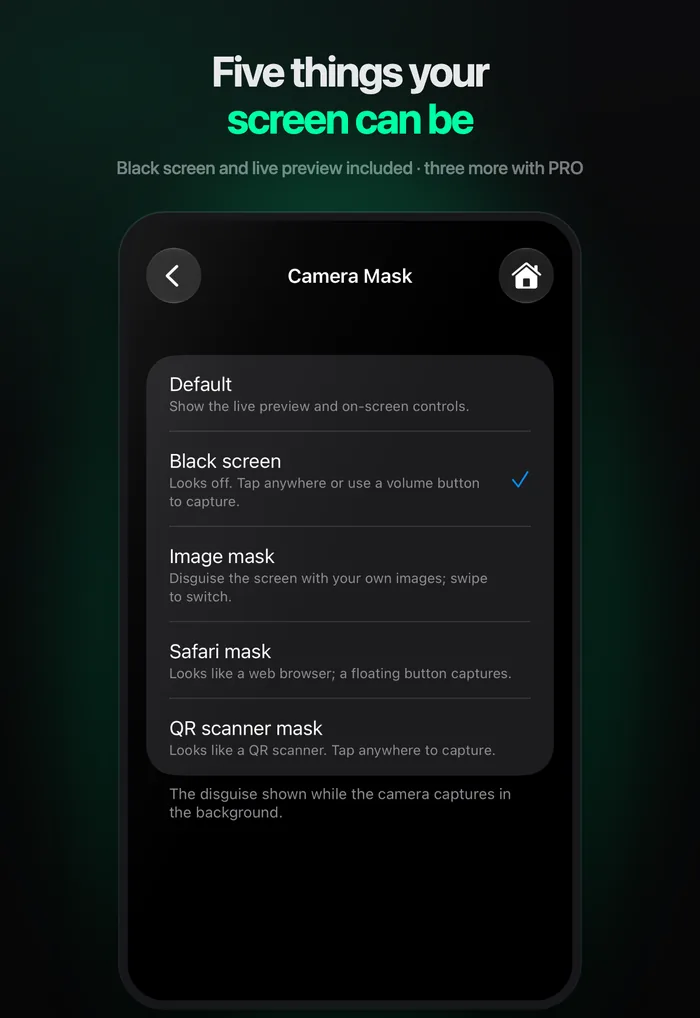
As a shutter, free, since 1.2.1. With Eclipse’s camera open — on any mask, including the black screen — pressing the Camera Control takes the shot, or starts and stops a recording in video mode. It behaves like a volume-button press: one press, one capture, confirmed by a haptic. On a black screen that matters more than it sounds. A tap anywhere on the glass works too, but a press on the side of the phone does not need your hand on the screen at all.
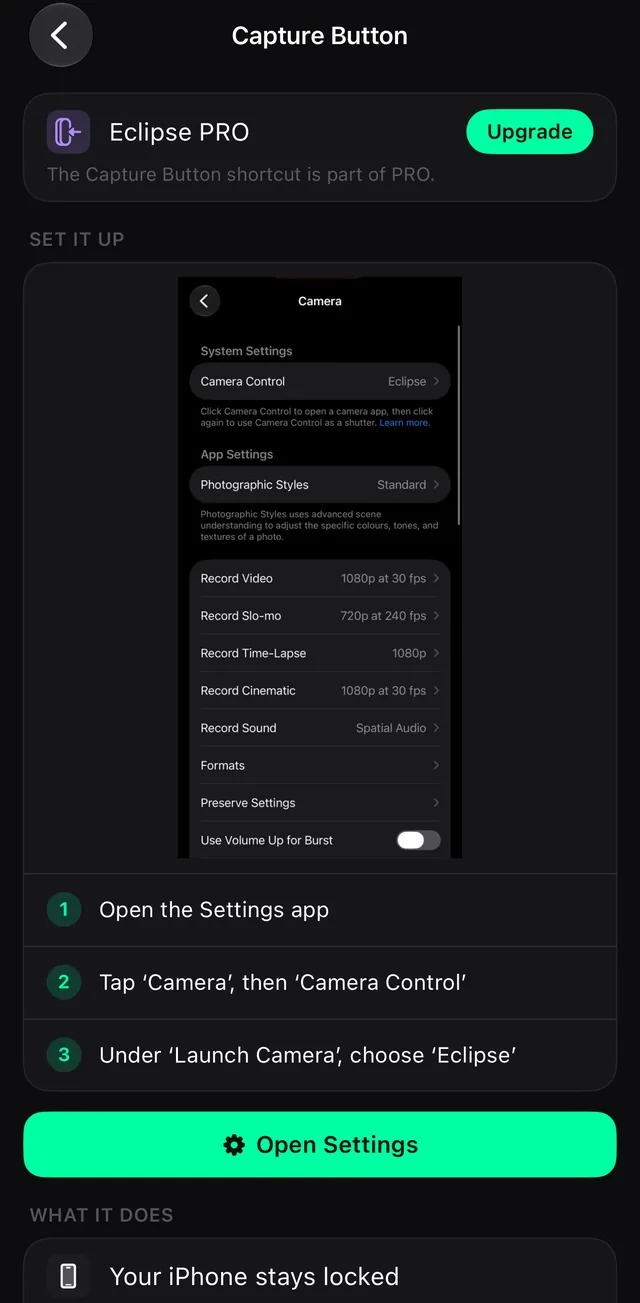
As a launcher, PRO, from 1.3. iOS lets you choose which camera app the Camera Control opens. Pick Eclipse in Settings › Camera › Camera Control › Launch Camera, and pressing the button on a locked iPhone opens Eclipse’s Lock Screen camera: black screen, camera running, phone still locked. Press again to take a photo.
Action Button (iPhone 15 Pro and later)
iOS gives apps no way to set or even read the Action Button, so Eclipse cannot assign itself. What it can do is offer controls that the Action Button’s “Controls” option lists, and show you where to find them.
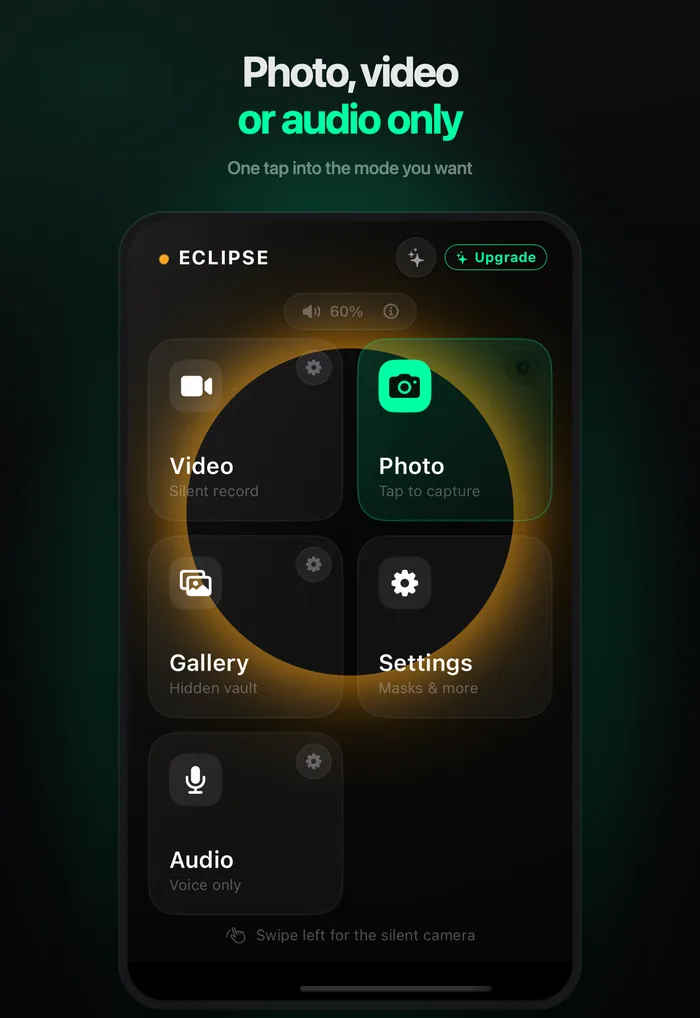
Quick Photo, Quick Video and Quick Audio, free. Eclipse 1.2.1 added an Action Button guide in Settings › Personalize. Assign one of these controls and a press opens Eclipse straight into that mode. One setting is worth knowing: Start recording right away makes Quick Video begin recording the moment the black screen appears, so a single press goes from pocket to recording. Since 1.2.1 these shortcuts go straight to the camera, with no flash of Eclipse’s home screen first.
The honest catch: these controls open the app. On a locked iPhone, iOS asks for Face ID before the camera starts, as it does for any app.
Locked Camera, PRO, from 1.3. The Locked Camera control opens the Lock Screen camera instead of the app, so there is no Face ID step and the phone stays locked. On an iPhone with an Action Button but no Camera Control — iPhone 15 Pro, 16e or 17e — this is the fastest route into Eclipse there is.
iPhone Duo
iPhone Duo’s cover screen is shaped differently from every other iPhone: shorter, with the status bar in a strip down the side instead of across the top. Apps built around a tall portrait screen end up with buttons under the system gesture area or controls pushed past the edge.
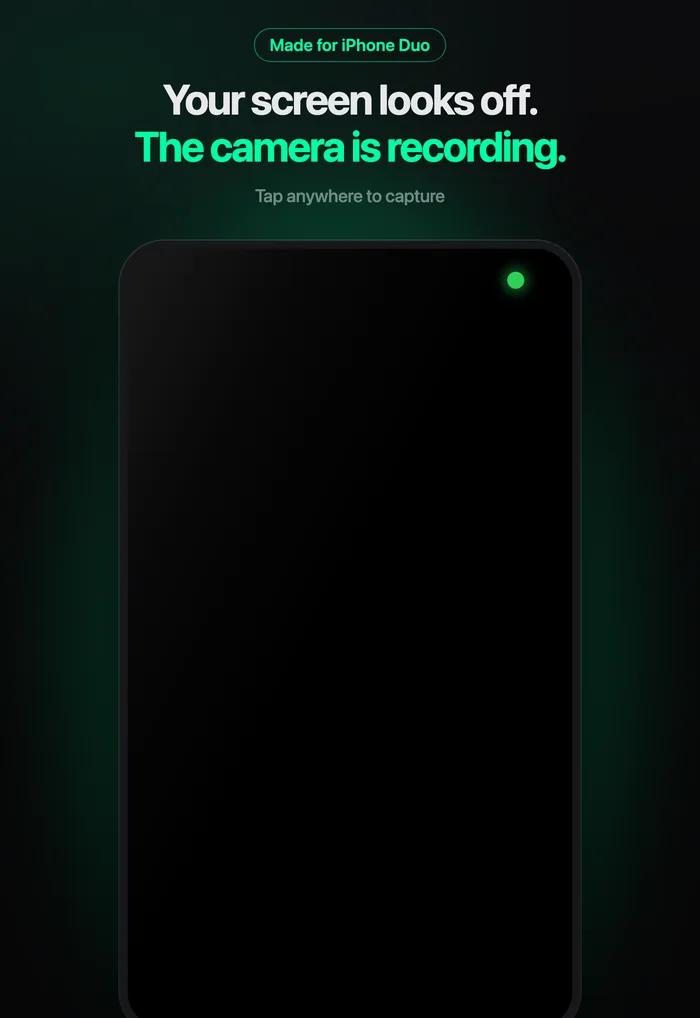
Eclipse 1.2.1 was made for iPhone Duo’s cover screen: the home screen, the camera’s on-screen controls and the intro all fit it — the intro scales its artwork down instead of clipping, and buttons sit clear of the band at the top where taps never reach the app. That makes the cover screen a natural place for a black screen camera: smaller, darker, easier to hold low.
Lock Screen and Control Center (any iPhone on iOS 18)
You do not need a new button to use the Lock Screen camera. From 1.3, the Locked Camera control can sit in the bottom corner of the Lock Screen in place of the flashlight or camera button, or anywhere in Control Center. That makes the feature available on any iPhone that runs iOS 18, not only the models with a Camera Control or Action Button.
Apple Watch and widgets still work
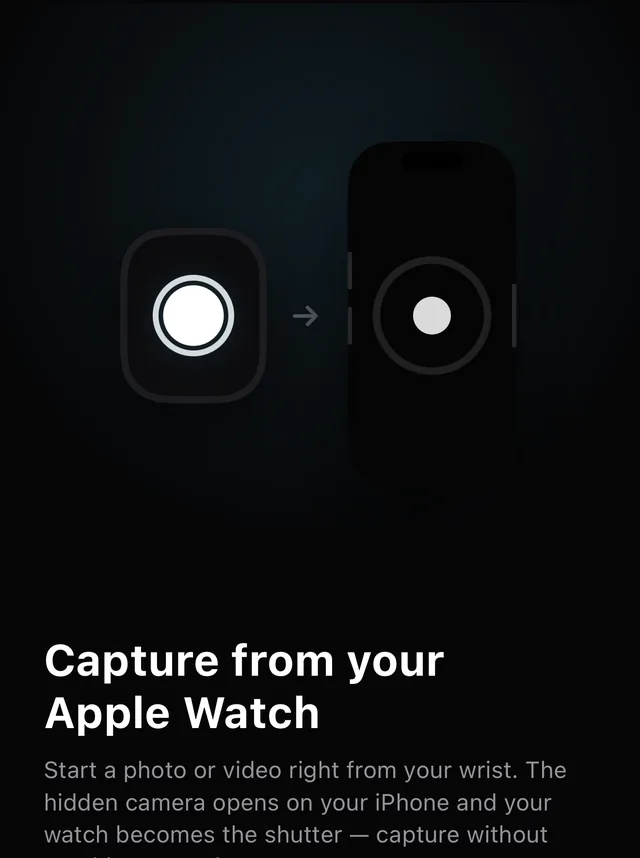
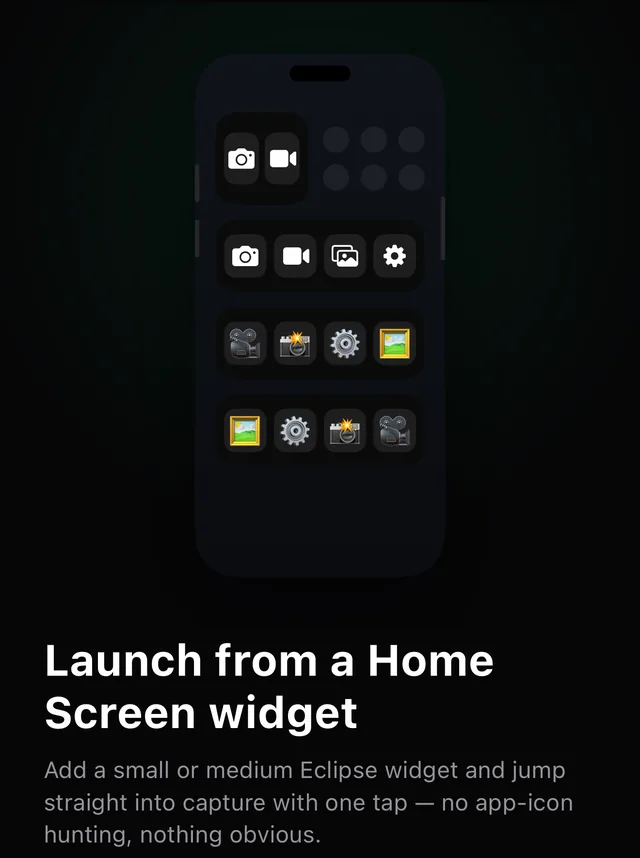
The newest buttons sit alongside the older ways in. An Apple Watch can still act as a remote shutter for the phone, and Home Screen widgets still jump straight into capture.
Other 1.2.1 changes worth knowing
A few 1.2.1 changes were less visible but matter on any iPhone:
- No more Auto-Lock mid-recording. Your iPhone no longer locks itself while Eclipse’s camera is open, so a long recording is not cut off by Auto-Lock.
- Slow motion survives a locked phone. Slow-motion videos finish converting even if you lock your phone right after recording.
- Faster bursts. Bursts save faster, and a photo that is still saving shows in the gallery straight away.
What none of this changes
New buttons make Eclipse faster to reach; they do not change what iOS allows. No app, Eclipse included, can record in the background or hide the green camera indicator. In regions where iOS enforces the shutter sound, a Camera Control press triggers it like any other shutter. And every route above ends in the same place: a camera that is on screen, showing a black screen.
To set any of this up, the step-by-step guide has the exact menu names for each button. If you are still choosing an app, see the best hidden camera apps for iPhone.
Frequently asked questions
- Does Eclipse work on iPhone 17, iPhone Air and iPhone 18 Pro?
- Yes. Eclipse supports every current iPhone. On models with a Camera Control (iPhone 16, iPhone 17, iPhone Air and iPhone 18 Pro) the button works as a shutter and, with PRO, opens Eclipse's black screen camera from the Lock Screen.
- Can the iPhone Camera Control open a third-party camera app?
- Yes. In Settings › Camera › Camera Control › Launch Camera you can choose any camera app that supports it. Choose Eclipse (1.3 or later) and a press on a locked iPhone opens its black screen camera.
- Can I use the Camera Control as a shutter in Eclipse without PRO?
- Yes. Since Eclipse 1.2.1, whenever Eclipse's camera is open the Camera Control takes the photo, or starts and stops a recording in video mode, on every mask including the black screen. That is free.
- Can I set the Action Button to open a hidden camera app?
- Yes, on iPhone 15 Pro and later. In Settings › Action Button › Controls, choose Eclipse's Quick Photo, Quick Video or Quick Audio (free, opens the app) or Locked Camera (PRO, opens over the Lock Screen without unlocking).
- Does Eclipse support the iPhone Duo cover screen?
- Yes. Since 1.2.1 the home screen, the camera's on-screen controls and the intro fit the iPhone Duo cover screen, with buttons kept clear of the strip where taps do not reach apps.
- My iPhone has no Camera Control or Action Button. Can I still open Eclipse from the Lock Screen?
- Yes, if it runs iOS 18 or later. Add Eclipse's Locked Camera control to a bottom corner of the Lock Screen or to Control Center.
- Can any app on a new iPhone record with the screen off or hide the green dot?
- No. New buttons make Eclipse faster to reach, but iOS still stops third-party camera apps from recording in the background and always shows the green camera indicator.
Eclipse is free to download
Five screen disguises, 4K capture and a Face ID-locked vault. The black screen mask, the lock and slideshow stay free.
Get it on the App Store